
The Zendesk system is generally broken up into several different subsections, each with their own functions and settings. Agents can access each of these sections by clicking on the four squares icon in the upper left hand corner of the screen, which will bring up the navigation menu.

This menu is broken up as such:
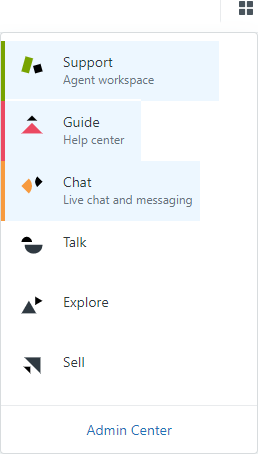
Support is where the core ticketing system and customer management tools are found, and is where agents are navigated to by default after logging in. Generally speaking, agents will spend 99% of their time in this section. For a more detailed breakdown of this section, see Navigating Zendesk - Support.
Guide is where the Help Center and its articles can be found. Most agents will only be able to see this section in "preview" mode, but agents that have specifically been given access to the Help Center backend will be able to access article editing tools. For a more detailed breakdown of this section, see Navigating Zendesk - Guide.
Chat is where individual settings for Zendesk Chat can be found. Because HACAP is using a modern version of the Zendesk chatting system, the majority of the options in this area are largely depreciated or redirect to other sections. However, certain settings like in-chat nicknames can be found and changed here.
Talk, Explore and Sell are all subsections that agents do not need to worry about: Talk and Sell are for Zendesk functionalities HACAP is not using, and only administrators have access to the reporting functionalities of Explore.
Admin Center is where agents can access their personal Zendesk account settings. By design, most of the information in this section is read-only, and do not directly impact an agent's day-to-day operations.
Comments
0 comments
Please sign in to leave a comment.