
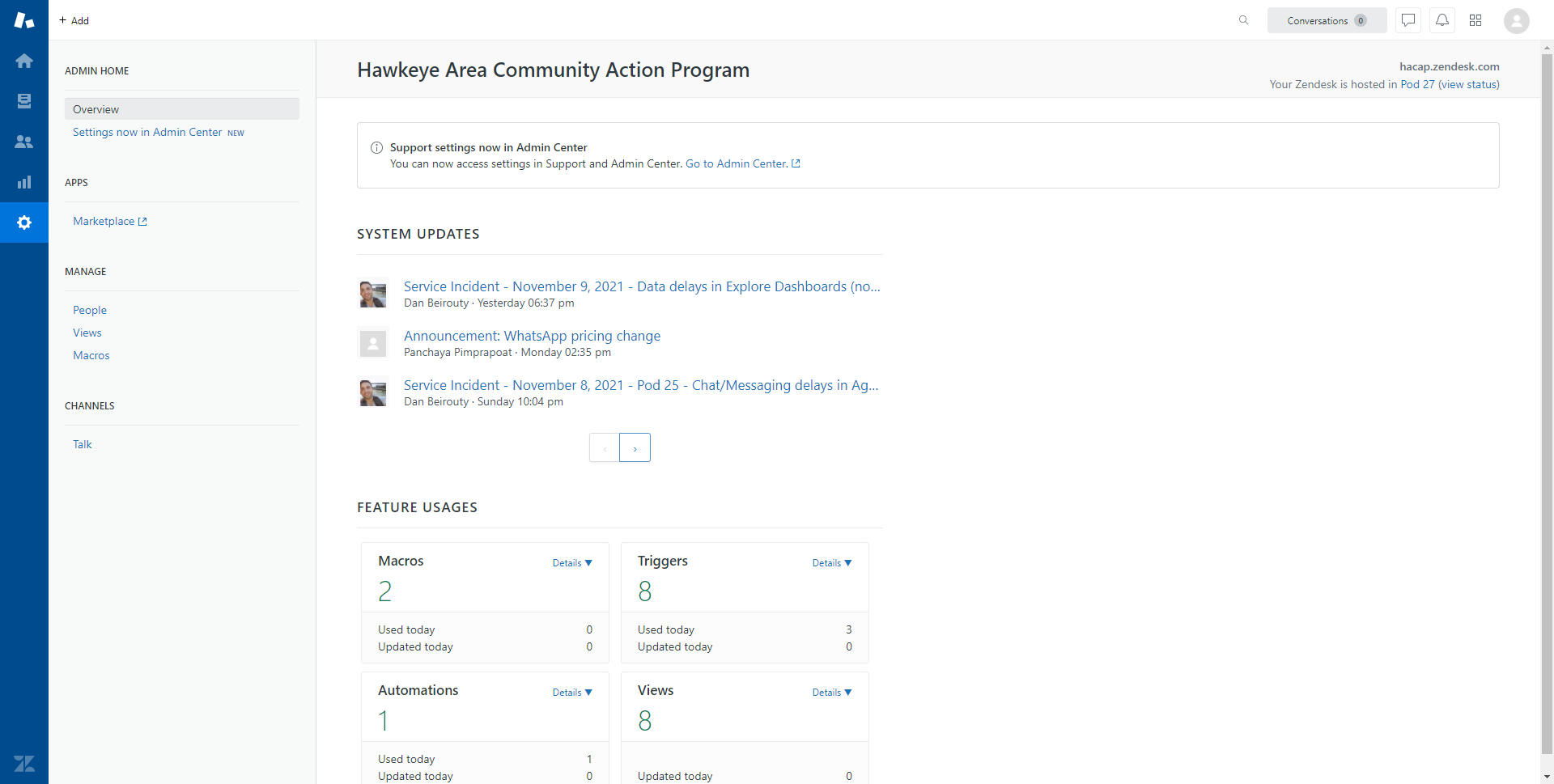
When answering tickets, you will likely find yourself repeating the same information or performing the same actions frequently, which can be frustrating and tiring to do as time goes on. To mitigate this, Zendesk gives agents the option to build shorthand commands called "macros", which allow them to do one or several tasks with the click of a button. To access the macro backend, navigate to the Settings tab in the Support section, then click on "Macros" in the left hand menu.
Click image to enlarge
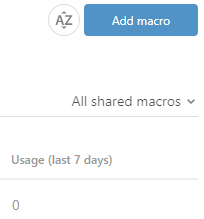
This will bring up the list of macros available to you. To add a new macro, click on the "Add Macro" button in the upper right hand corner of the page.
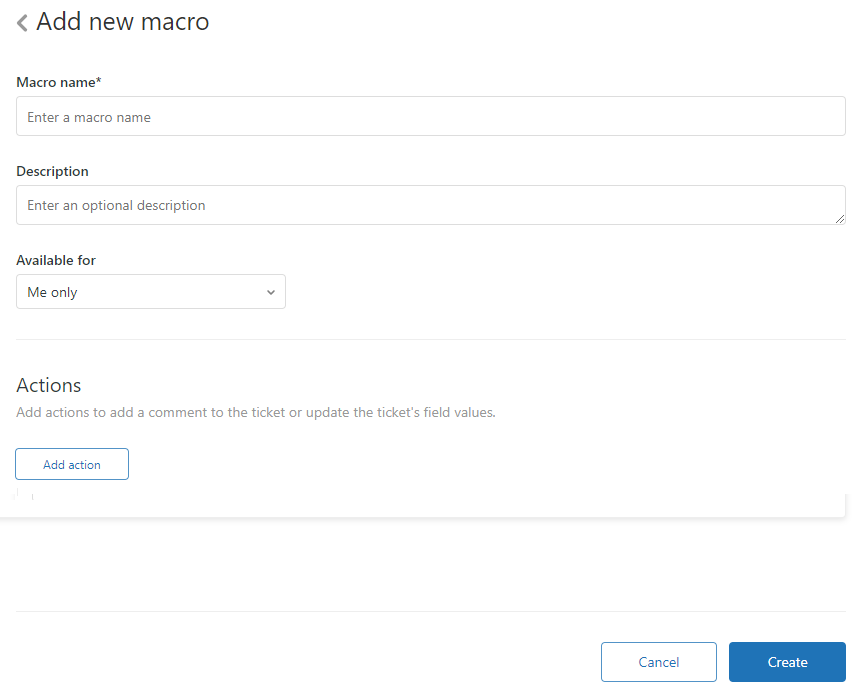
This will bring up the Add Macro screen. This is where you can name your macro, enter an optional description, and define what the macro will do. You can set your macro do do several things all at once, but keep in mind that each option can only be selected once.
Below is a list of all the available actions a macro can execute, as well as a description of each.

Set Subject alters the subject line of a ticket to whatever is defined within the macro. Because this overwrites the existing subject line, this should be used carefully.
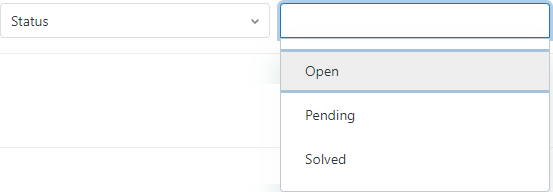
Set Status changes the status of a ticket from Open, Pending or Solved. This can be very useful if a macro needs to close certain types of tickets quickly, such as spam tickets.
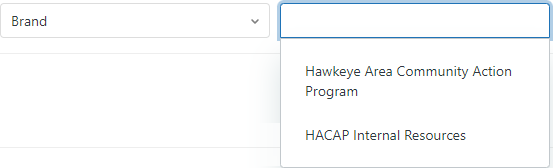
Set Brand changes the brand in which the ticket is located. Because tickets are to be exclusively submitted by external clients, this action is not to be chosen for macros.
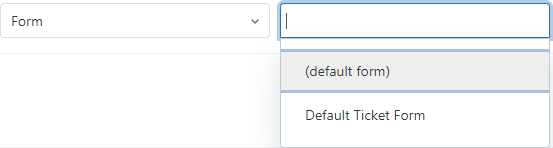
Set Form changes the form information on the left hand side of the ticket. Because we only use a single ticket form for ticketing operations, this action is not to be chosen for macros.
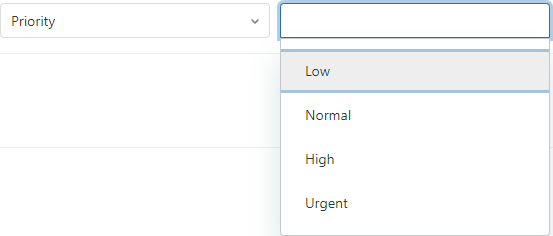
Set Priority changes the ticket priority to Low, Normal, High or Urgent. HACAP tickets do not generally use the priority system, so this action is irrelevant for normal operations.
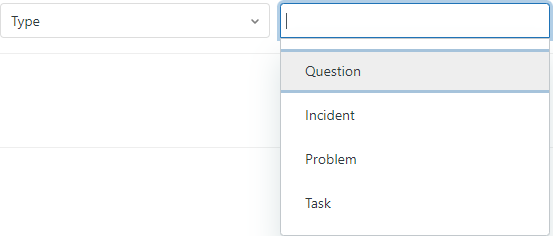
Set Type changes the ticket type to Question, Incident, Problem or Task. Like Set Priority, HACAP tickets do not generally use this system, so this action is not to be chosen for macros.
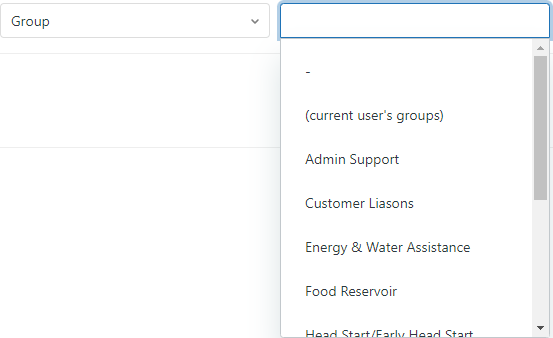
Set Group changes which group the ticket is assigned to. This action can be very helpful if there are a large number of a specific type of tickets that need to be routed to a specific team (such as during LIHEAP season).
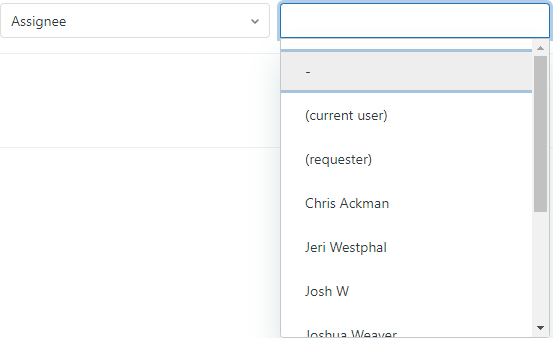
Set Assignee changes which specific agent the ticket is assigned to. Generally speaking this is unnecessary, as ticket reroutes should be sent to groups instead of individuals, but this can also be useful if a specific person has requested all tickets of a certain type to be assigned to them specifically.
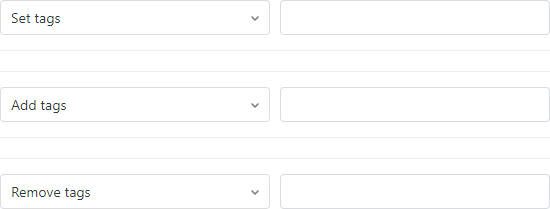
Set Tags, Add Tags and Remove Tags all alter the tags of a given ticket. Because tags are system generated and designed specifically for reporting, this action is not to be chosen for macros.
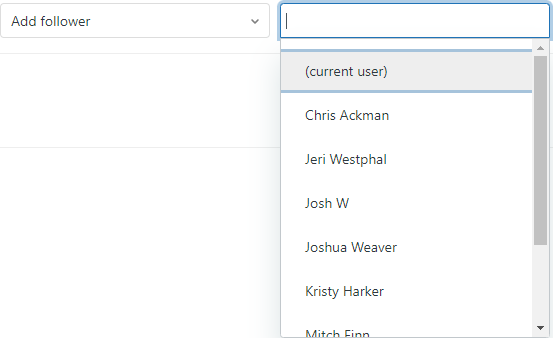
Add Follower assigns a specific user to a ticket as a follower. Most tickets will not need followers added, so do not choose this for a macro unless specifically told otherwise.
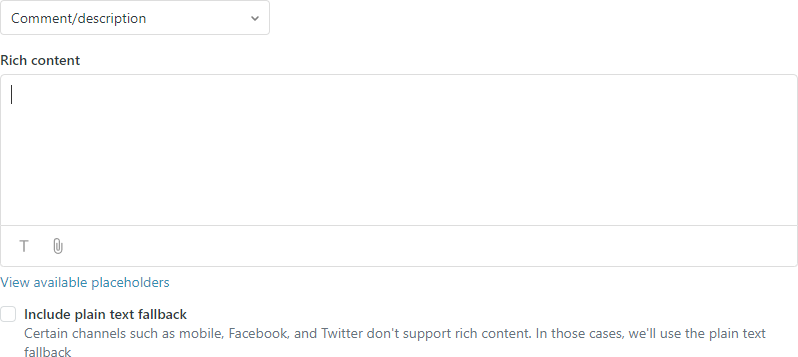
Comment/Description alters the comment field in a ticket. This option is what most macros will utilize, as it allows for specific information to be typed out with a single click. Note that this action only adds the entered information into the comment field, it does not submit anything to the ticket until the agent hits the "Submit" button.
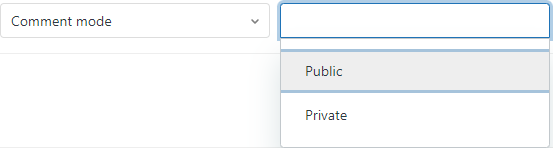
Comment Mode changes the type of comment between Public and Private. Public comments are visible by clients, while Private comments are only visible by agents. This action works well in tandem with the Comment/Description action to allow quick internal notes for a given ticket type.
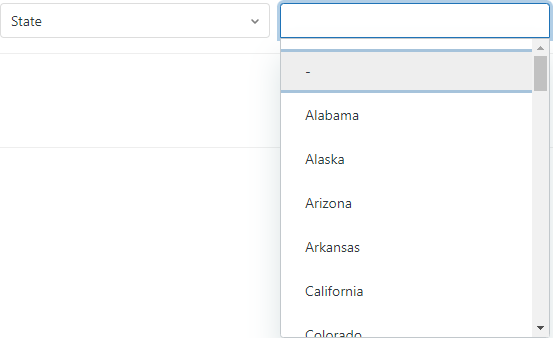
State changes the "State" option in the ticket form on the left-hand side of each ticket. This action is largely irrelevant for HACAP operations, so it is advised to not use it in a macro.
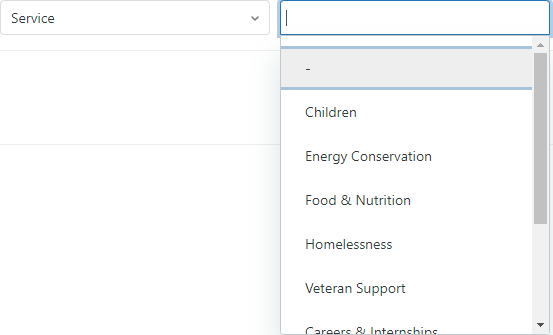
Service changes the "Service" option in the ticket form on the left-hand side of each ticket. This action does not change the assigned group within a ticket, so it is largely irrelevant and does not need to be used in a macro.
Macros are designed to accomplish several actions at once, so when designing your macro it's important to determine what specifically needs to be done. For example, if you are creating a macro to close out spam tickets, you would need to add the following actions:
- Set Status - Solved
- Comment/Description - "This ticket is spam, closing ticket"
- Comment Mode - Private
Comments
0 comments
Please sign in to leave a comment.