
Sometimes, when a client reaches out multiple times through email or chat for the same issue, their requests get split into two separate tickets. When this happens, it is possible for an agent to merge these two tickets into one for ease of reference. When this happens, one ticket is closed, while the other is updated with the previous ticket's information.
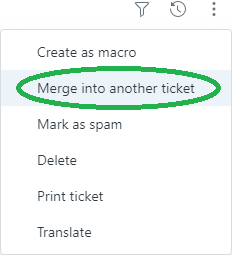
To do this, go into one of the tickets you would like merged. It is important to note that the ticket that is selected is the one that will be deleted, so make sure you choose your ticket wisely. In the upper left hand corner, click on the three dot icon, then click "Merge into another ticket".
This will bring up the merge screen. If the client is using the same contact information, their previous tickets will be listed at the bottom of the page, allowing you to review their ticket history and choose the appropriate ticket. If the other ticket is NOT listed, you can manually enter the ticket ID in the merge text field (ticket IDs can be found in each ticket at the top of the screen).
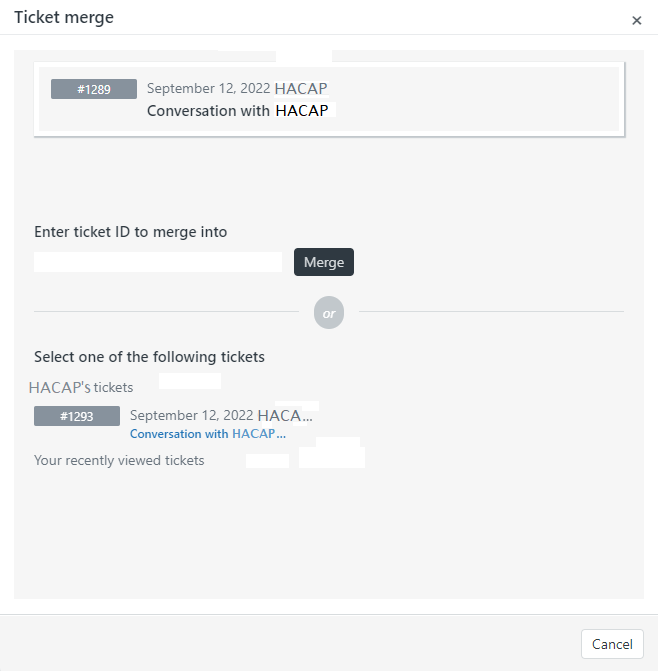
Once you have selected the ticket you want to merge, click the "Merge" button. This will bring up the confirmation screen - make sure all of your information is correct, then click "Confirm and Merge" to complete the process.
Comments
0 comments
Please sign in to leave a comment.